
Client project management for small studios
Coordinate approved work across a small service team while giving clients a clear place to review scope, delivery and invoices.
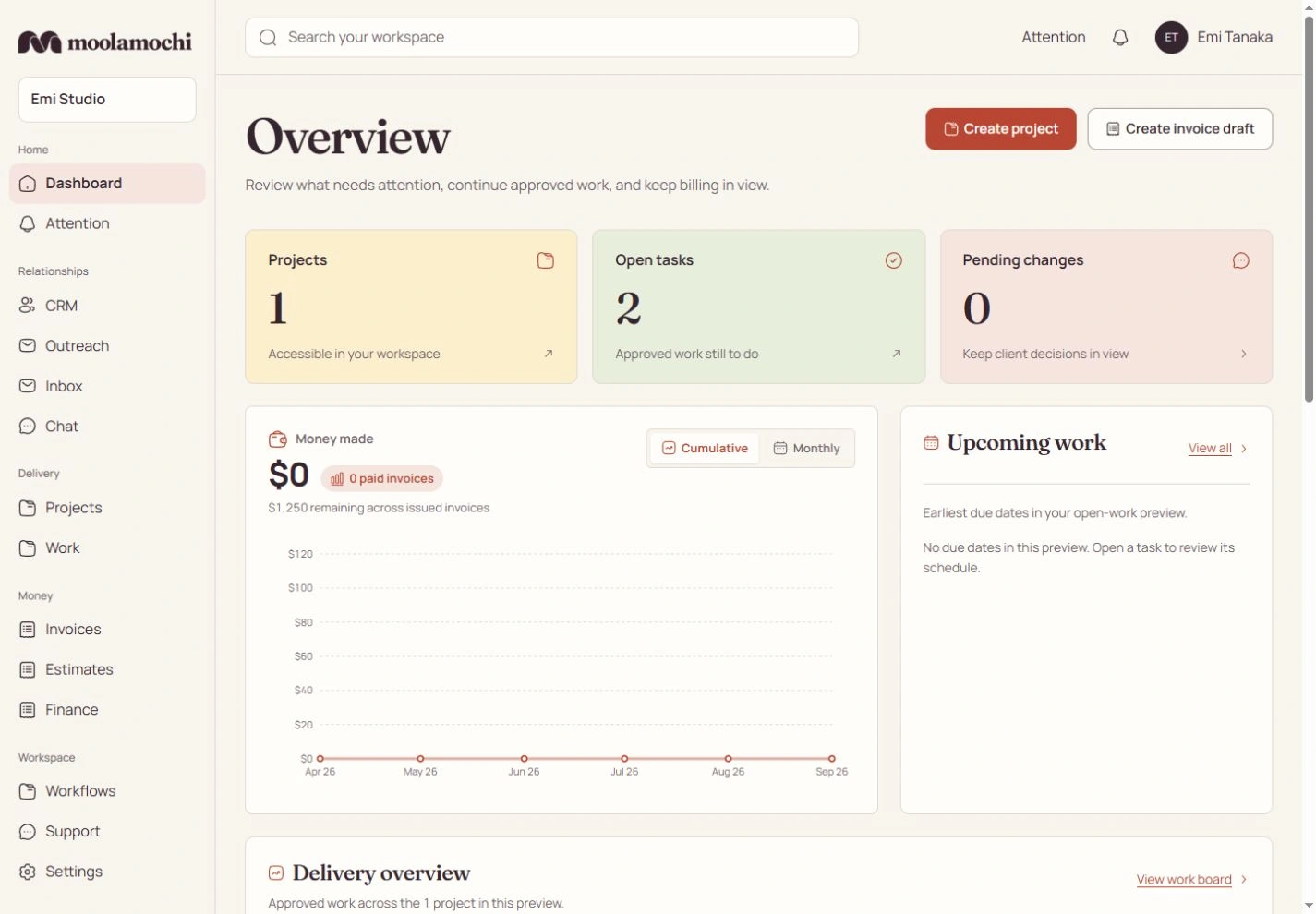
Give the team one approved scope to work from
Generate service work deliberately from the agreed scope, then use the same work in the board and list. Assign eligible tasks and track actual time separately from planned effort. Returning to generated work preserves its assignments and execution history.
A blocked task keeps its reason. Completing a task changes delivery progress, not the invoice’s payment status.
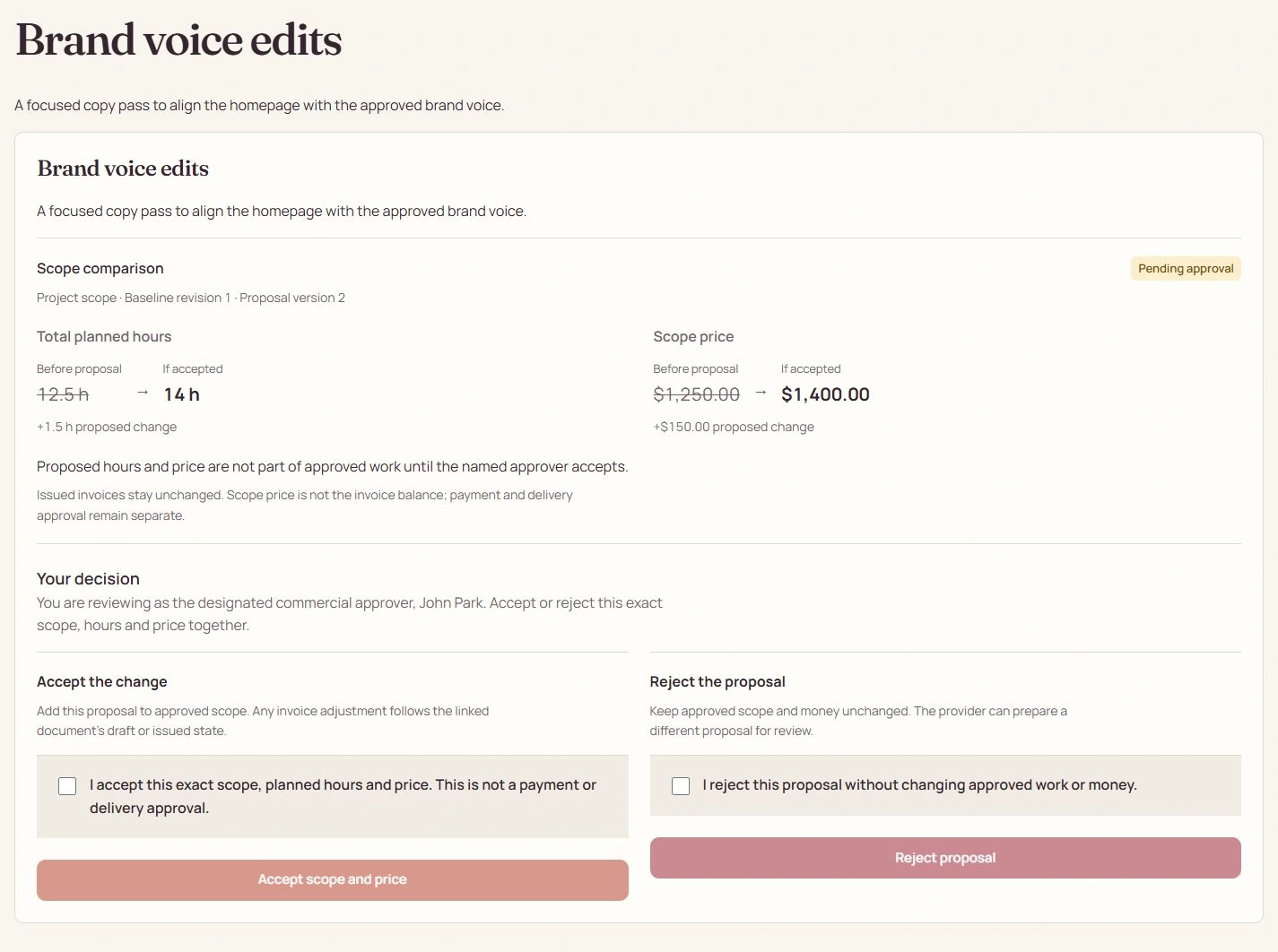
Put each client decision with the right person
Publish the deliverable version the client should review instead of exposing the internal board. Viewing, requesting, commercial approval, delivery approval and payment are independent grants.
A requester can describe a change without gaining authority to accept its price. The named commercial approver decides the current scope proposal; a delivery approver reviews the current published version.
Team execution with client clarity.
- Team workboard
- Assign work, track actual time against planned effort and preserve execution history.
- Client review
- Clients review published deliverable versions, not private internal workboards.
- Stripe Connect
- Studio and Agency connect your own Stripe account with no Moolamochi percentage fee.
Review the commercial effect before collecting it
Keep issued amounts fixed while the team evaluates the new request. An approved positive addition produces new work and a separate supplementary draft. Finance reviews issuance; the client’s payment and delivery approval remain separate.
Choose Studio or Agency by the internal users, senders and other capacity your workspace needs. Both connect an existing Stripe account and have no Moolamochi percentage fee on client payments; Stripe processing costs still apply.
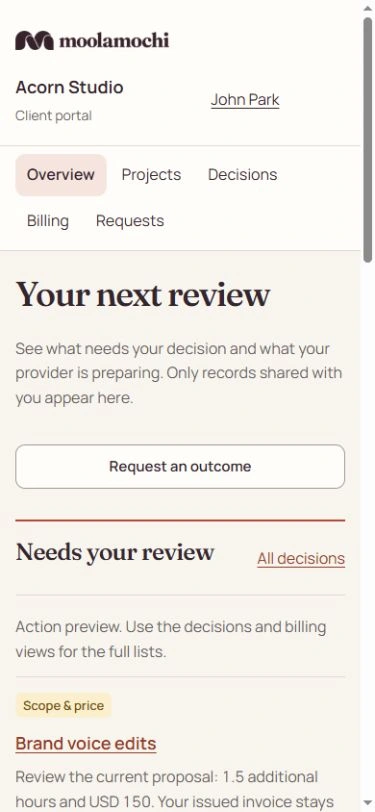
Open the full-size image to inspect the controls. Your available actions depend on the record’s state and your explicit permissions.
See the steps before you act.
Watch a silent recording of the actual interface, with captions and written steps.
Open the complete Help Center guideWatch the walkthrough and read the steps
Give each client only the authority they need
Who acts: Workspace Owner or Admin → intended verified client
Set organization, project and explicit grants instead of treating one portal invitation as permission to approve everything.
Go straight to the steps
Playback and accessibility
Use Play or Pause, move back or forward 10 seconds, or restart from the title screen. Tab to a button, then press Enter or Space. Action captions are included in the video, and the complete written steps follow below.
Download the action captionsGo straight to the written stepsChoose the intended client and project scope
Open Team and client access, then Invite a person. Enter the Intended verified email, choose client Access type, select Client organization and narrow Project scope. Organization-wide access is broader than one project.
Select independent client grants
Under Explicit client grants, select only the required viewer, requester, commercial approver, delivery approver, payer or message participant permissions. Payment authority does not imply approval authority. Private mailbox access is never included.
Prepare the invitation without queuing email
The recording enters a viewing recipient and narrow client/project scope, without creating an invitation. In production, review grants before Create and queue invitation. Only the intended verified email can accept once before the seven-day expiry. Queued is not delivered, and clients see only published permitted records.
Review exact-grant revocation and cancel
The recording opens Revoke grant for one explicit permission, then cancels without changing access. A real confirmed revocation removes only that grant and scope. Other grants remain independent. For one invoice, prefer a revocable document link; it cannot open project chat or grant commercial consent.
What changes when you finish
The right person can view, request, decide or pay within their explicit scope. Neither an internal role nor a guest invoice link can impersonate client consent.