
Invoicing software that keeps approved scope attached
Prepare, preview and issue an invoice with linked service scope, while keeping payments and delivery independently visible.
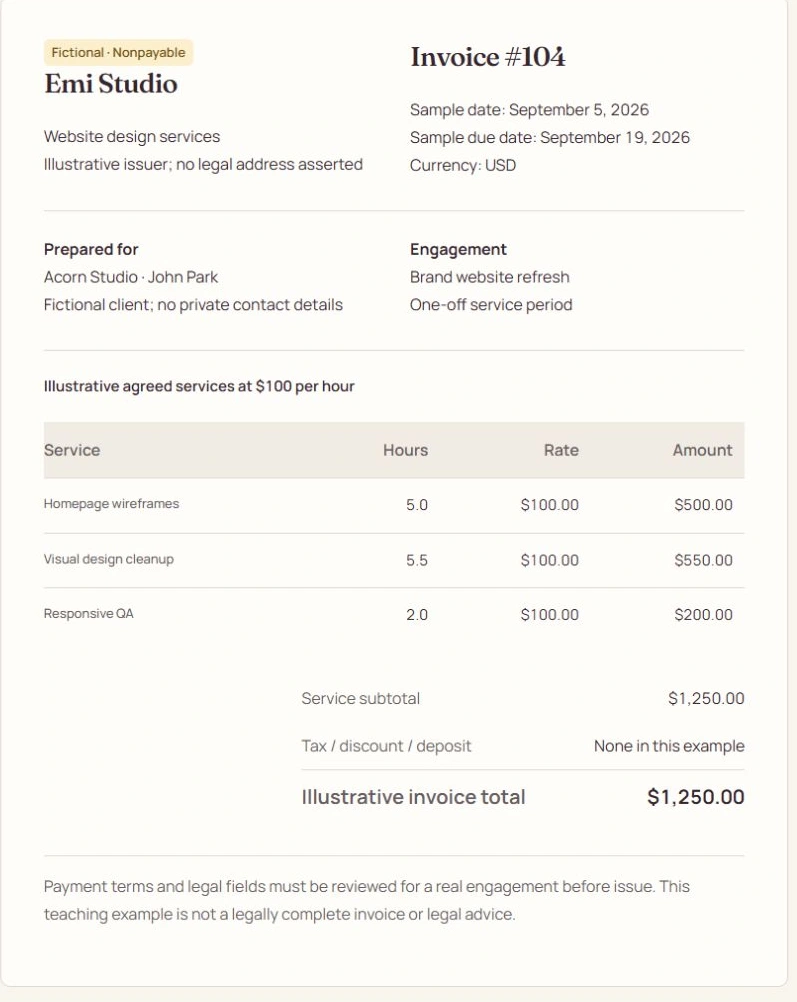
Review the document before issue
Choose a client, service period and currency. Add hourly or fixed services, expenses, discounts and explicit line tax rates. Review recipient and issuer details, due date, payment terms and the generated PDF. Missing required fields or signatures block issuance. Tax rates are entered by the issuer; this is not automatic jurisdictional tax advice.
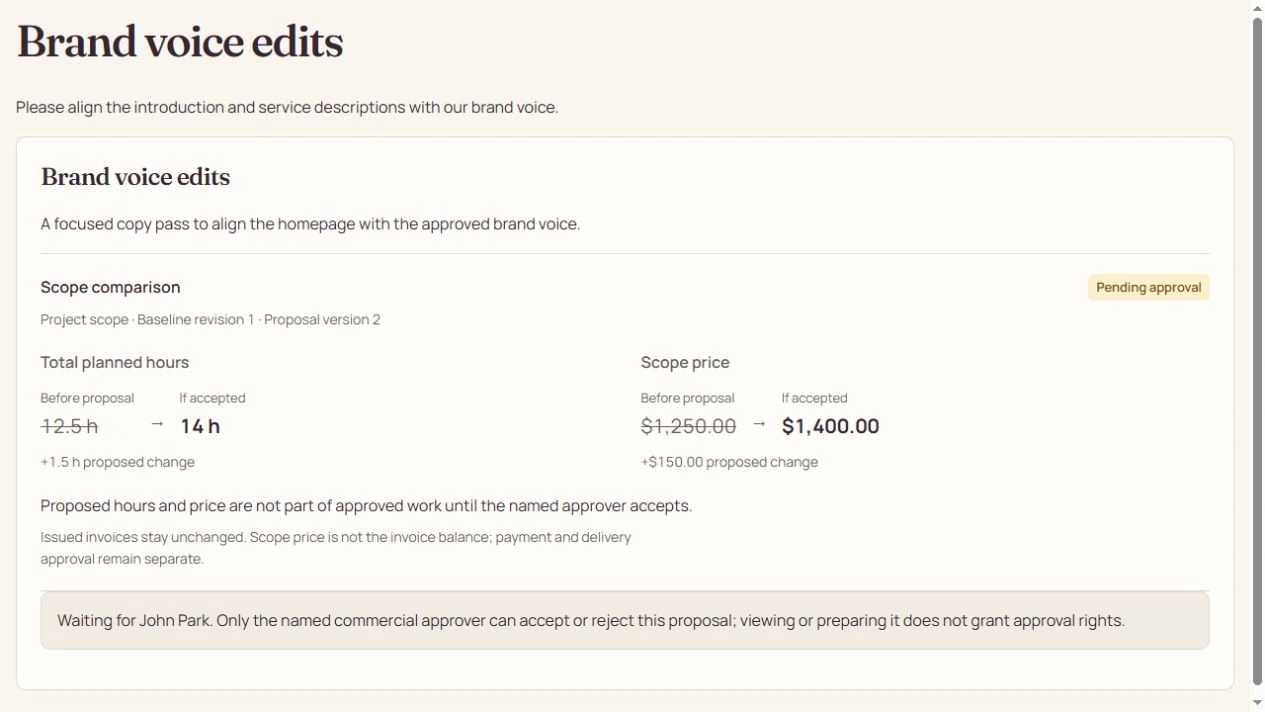
Change the scope without rewriting the invoice
Draft hourly lines can follow approved planned effort with Auto-adjust hours. Issued invoices never change through that setting. An approved positive change against an issued invoice creates a separate supplementary draft for finance review. Due-date amendments and credits retain dated history.
Know which financial record you are changing.
- Editable draft
- Review service rows, legal details, tax, terms and scope alignment before issue.
- Issued original
- Its original legal details and amounts remain fixed. Saving a new brand does not rewrite it.
- Linked addition
- An approved positive change creates a supplementary draft. It is not outstanding issued money until issue.
Know what a payment status means
A checkout return can still be Confirming payment. Only verified successful payment applications reduce the outstanding balance. Delivery progress remains a measure of completed approved effort, regardless of how much has been paid. Solo collection deducts a 1% Moolamochi fee from freelancer proceeds, plus actual processing fees; it does not add that fee to the client’s invoice.
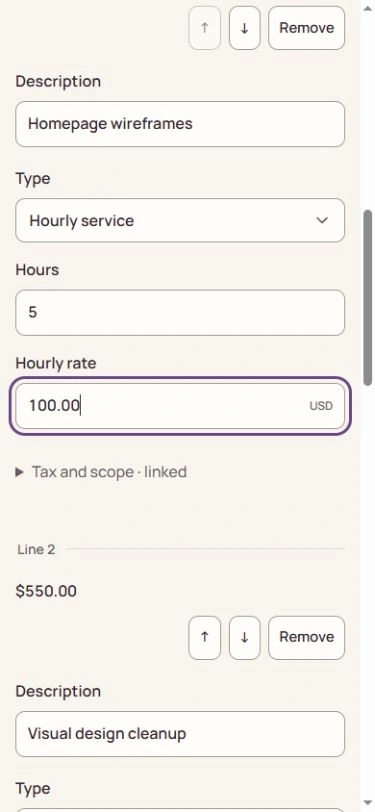
Open the full-size image to inspect the controls. Your available actions depend on the record’s state and your explicit permissions.
See the steps before you act.
Watch a silent recording of the actual interface, with captions and written steps.
Open the complete Help Center guideWatch the walkthrough and read the steps
Edit a draft, then issue it deliberately
Who acts: Owner, Admin or Finance; assigned project leads may prepare drafts
Change readable currency amounts and service rows while the document is still a draft. Saving and issuing are separate decisions.
Go straight to the steps
Playback and accessibility
Use Play or Pause, move back or forward 10 seconds, or restart from the title screen. Tab to a button, then press Enter or Space. Action captions are included in the video, and the complete written steps follow below.
Download the action captionsGo straight to the written stepsOpen the draft you want to change
Open Invoices, select a draft, then choose Edit draft in its quick actions. Check the client, project and currency first. Issued invoices have no money-editing action; use a linked supplement or credit instead.
Edit the service rows in familiar amounts
Change descriptions, quantities and rates directly in the compact line items. Enter a rate such as 100.00 for $100, not 10000 cents. Add or remove draft rows as needed, then review the calculated total.
Review Auto-adjust hours before saving
The recording toggles the visible Auto-adjust hours checkbox beside the draft total. In your workspace, choose the draft-hour setting, expand any needed Tax and scope, Payment schedule or Terms and invoice settings options, then choose Save draft changes. Only approved planned work can align draft hourly lines; proposed changes and issued money are not edited. Saving does not send, issue or generate work.
Review issuance as a separate decision
The recording checks the issuance review and shows Issue invoice becoming available, but does not submit it. In production, an Owner, Admin or Finance user checks recipient details, due date, terms and the saved total before explicitly issuing. Required signatures and out-of-sync scope must be resolved first. A failed PDF or email job is not permission to issue twice.
What changes when you finish
The saved draft remains editable until it is issued. Issuance freezes the financial document; payment and delivery still have their own states.